> ## Documentation Index
> Fetch the complete documentation index at: https://docs-insights.petasight.com/llms.txt
> Use this file to discover all available pages before exploring further.
# Metrics
1. Visit the Administration page.
## Add a Metric
1. Click on 'Add New Row'.
2. Fill in the Friendly Name of the metric and the SQL to pull it from your data
source, then hit "Update Metric".
 ## Update a Metric
1. Click on the field you want to edit, and modify it.
## Update a Metric
1. Click on the field you want to edit, and modify it.
 # DANGER ZONE
## Delete a Metric
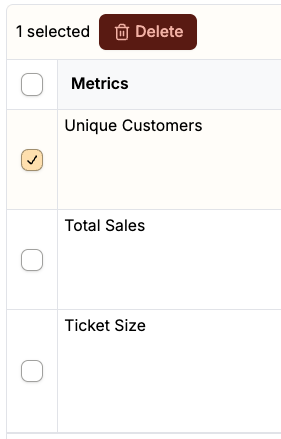
1. Select the relevant Metric,
then Click "Delete".
2. Confirm your decision, and the metric will be deleted.
# DANGER ZONE
## Delete a Metric
1. Select the relevant Metric,
then Click "Delete".
2. Confirm your decision, and the metric will be deleted.